

NBTExplorer
NBTExplorer is a powerful, open-source NBT editor for Minecraft world data editing that can be downloaded, installed, and updated for Windows, macOS, and Linux. It lets you edit Minecraft’s NBT files (used primarily in Java Edition) with a graphical interface.

What is NBTExplorer?
NBTExplorer is a free and open-source NBT (Named Binary Tag) editor with a simple graphical interface to view and edit Minecraft world and player data (mainly for Minecraft Java Edition). It is developed by Jaquadro using C#, is distributed under the MIT License, and has received around 2.7K stars on GitHub.
Justin Aquadro (jaquadro) built this powerful low-level editor for Minecraft Java Edition and Bedrock to give users greater control over world data. You get direct access to the NBT data that the normal Minecraft menus cannot edit. Whether you want to turn cheats on, change gamerules, adjust inventories, or fix chunks that became corrupted, it gives you detailed control over Java Edition world data.
Another interesting feature of NBTExplorer is that Minecraft modders, map creators, and server admins can load and edit Minecraft world files smoothly by following simple steps, since editing these files directly in their complex structure is difficult. They can make changes to files such as level.dat, player data, entities, Anvil region files (.mca), old region files (.mcr), schematics, uncompressed NBT files, and cubic-chunk worlds.
For your safety and authenticity, NBT Explorer should always be downloaded from trusted sources. Our site provides up-to-date and clean download links.
Download NBTExplorer [Latest Version]

NBTExplorer || v2.8.0 || 294 KB
Minimum System Requirements
Windows Requirements:
What You Need for Linux:
Mac Requirements:
How to Download and Install NBTExplorer? [Complete Guide]
Always download NBTExplorer from the official NBTExplorer GitHub releases page or from our website, extract the Zip, run the executable for Windows, or run with Mono for macOS and Linux. You must always back up your world before doing any editing.
Before you begin:
- Backup your worlds: You must copy the server world folder, or Minecraft save, to a safe location, as the edits you will do are permanent.
- Choose the correct build: You need to select builds according to your OS (Windows, Mac, Linux).
Windows – Download & Install
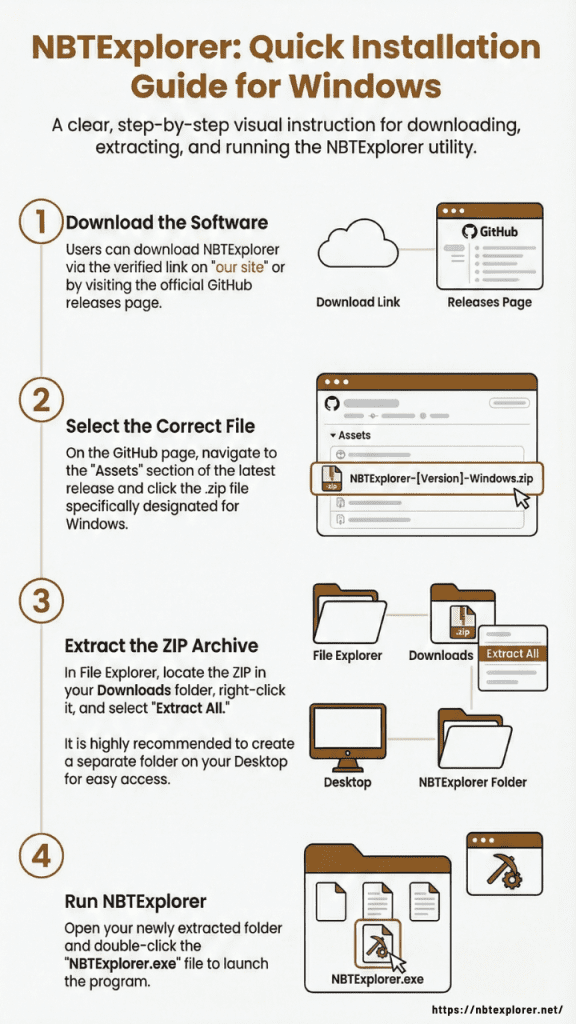
You can download it by clicking the verified link on “our site” or
Go to the official NBTExplorer GitHub releases page
Under the latest release, find Assets and click the .zip file for Windows to download it.

Now open File Explorer and go to Downloads. Right-click the ZIP file and select Extract All. Creating a separate folder is a good idea, and it’s okay to save it on the Desktop for easy access.
[File Explorer → Downloads → ZIP → Extract All]

Open the extracted folder and double-click NBTExplorer.exe to run it.

Mac Users
About Gatekeeper:
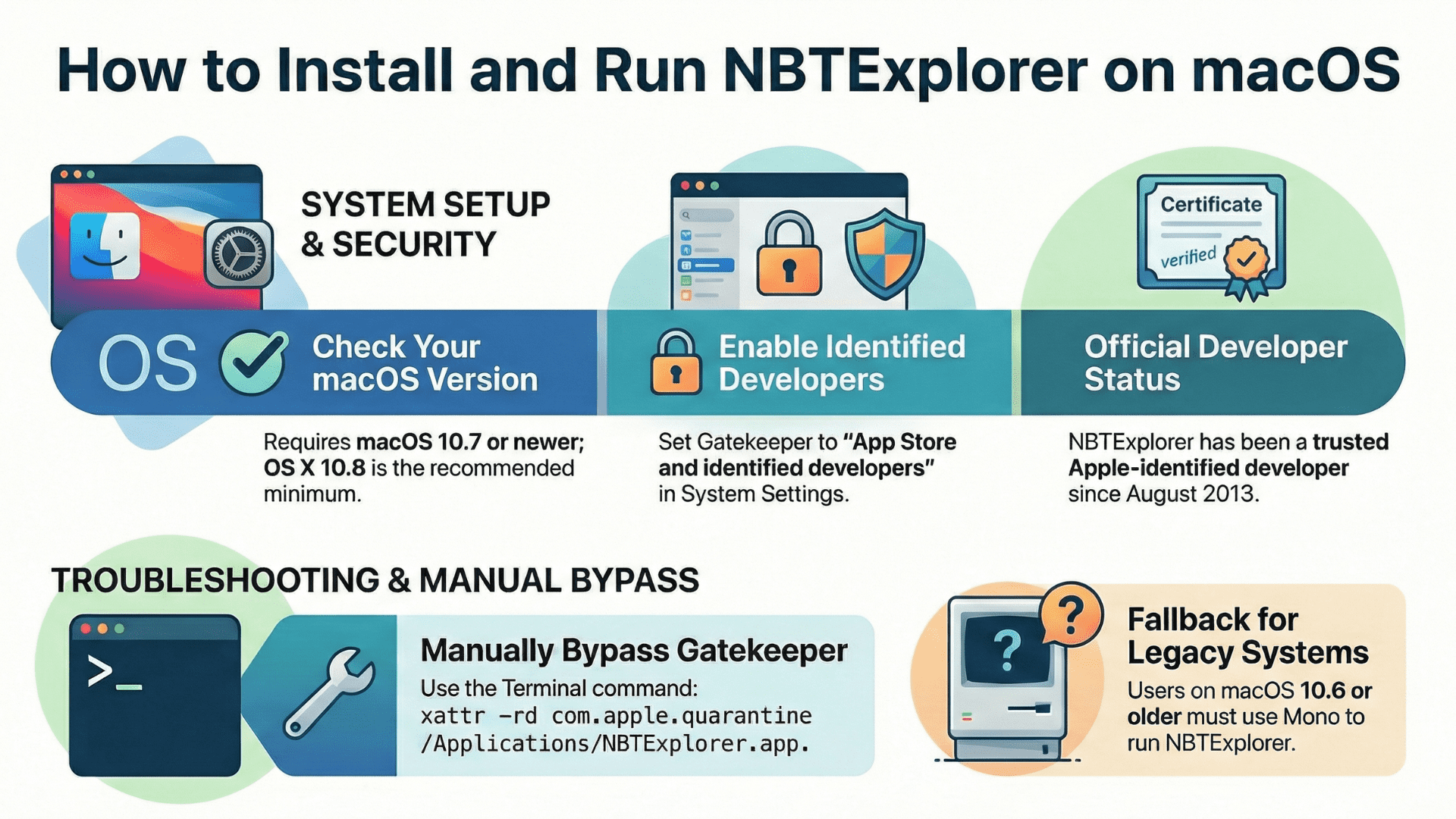
NBTExplorer has had an official Apple Developer ID since August 22, 2013. This means macOS recognizes it as coming from a trusted and identified developer.
If macOS blocks the app, you may need to adjust your Gatekeeper settings.
To do this, go to: System Settings → Privacy & Security → Security → “Allow apps downloaded from:”
Here you will see two options:
- App Store
- App Store and identified developers
Select “App Store and identified developers” so apps like NBTExplorer can open normally.

How to Bypass GateKeeper
If you still face difficulty using NBTExplorer on your MacBook, you may need to manually bypass Gatekeeper, as follows:
Download NBTExplorer.
Now copy NBTExplorer.app from the ZIP file or disk image (.dmg) into your Applications folder.
Open Terminal (Applications → Utilities → Terminal).
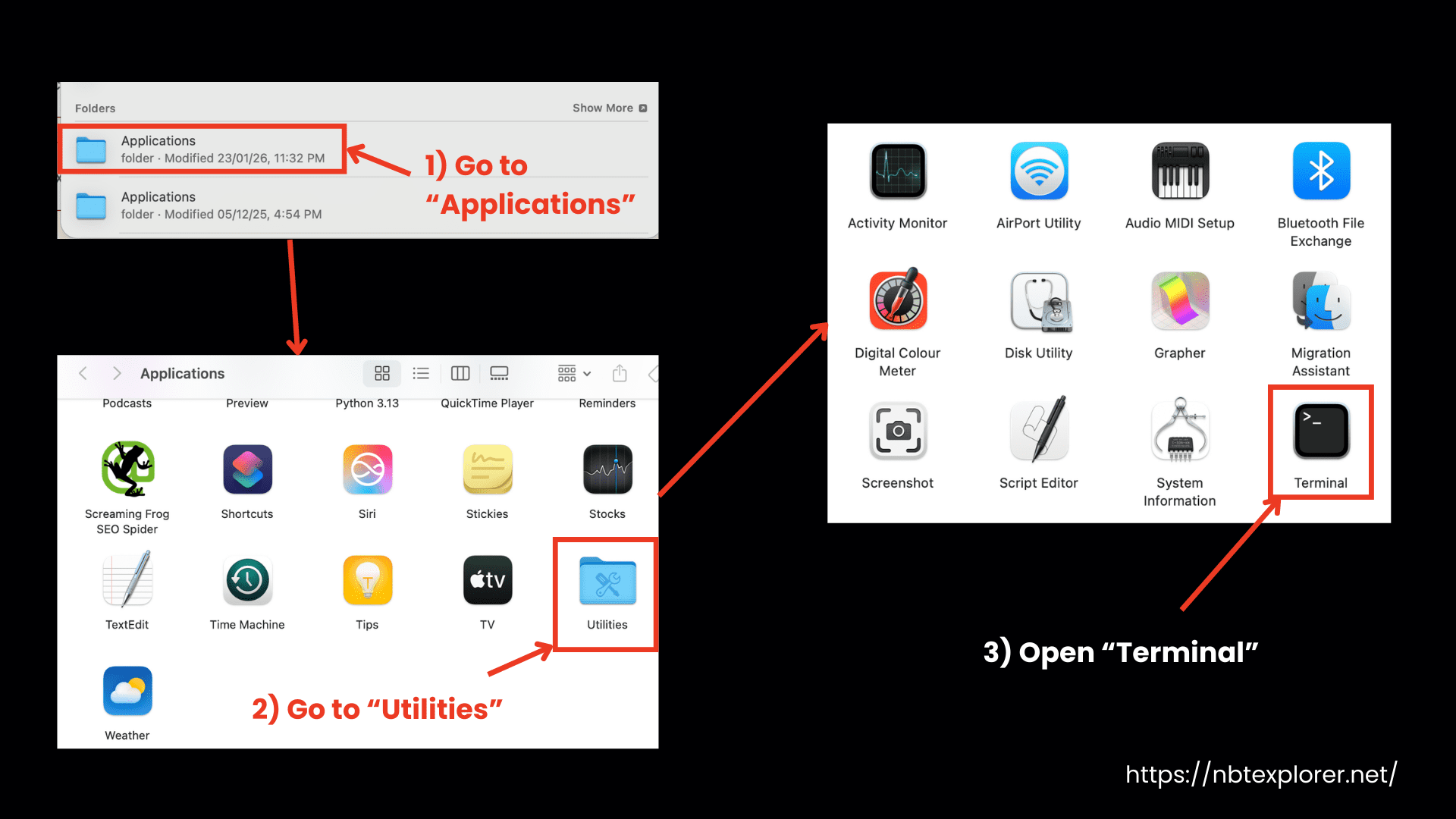
Type this command exactly: xattr -rd com.apple.quarantine /Applications/NBTExplorer.app

This removes the security flag so the app can open normally.
If the Mac Version Doesn’t Work:
If your NBTExplorer not working on a Mac, do the following:
The native NBTExplorer macOS build requires macOS 10.7+.
So users on 10.6 Snow Leopard or older must use the Mono method.
- You can run the Windows version on your Mac. You need Mono to run the Windows .exe version of NBTExplorer on macOS.
- Install Mono (same as Linux users).
- Then run NBTExplorer through Mono.

- You may also need to remove the Gatekeeper quarantine using the same Terminal command mentioned above.
Linux
You can use NBTExplorer Linux by using the Mono runtime. You just need Mono 2.6 or later in your system. Follow these steps to download and run NBTExplorer on Linux:
Step 1: Make sure Mono is installed
- You need the latest Mono runtime, along with the mono-core and mono-winforms packages, already installed on your system.
Step 2: Download NBTExplorer
- Now download the NBTExplorer online from our website.
- You should download the .zip file for the Windows/Linux version.
Step 3: Extract & Start
- Now extract the ZIP file into a folder you created for it. Then open the folder and run NBTExplorer.exe using Mono.
Note:
The remaining steps, such as opening your world folders and editing values, are the same as on Windows or Mac, so you can follow those instructions as explained below.
How to Use NBTExplorer? [Getting Started]
Till now, we have discussed how you can download the NBTExplorer Minecraft; now we will discuss how to use it in detail:
Step 1: Backup Your World
Never forget to back up your world before making any changes. You can do the backup as follows:
- Go to the Control Panel of your server or your local Minecraft folder.
- Download the world folder or the level.dat file.
- Keep a copy in a separate and safe folder.
Step 2: Open NBTExplorer
- Now you can edit the files by launching NBTExplorer.
- Go to File → Open and open the level.dat file or any other NBT file you want to edit.

Step 3: Edit World Data
- You do the editing by expanding the tree structure and clicking the + signs to view all values.

- To change a value, double-click it. After editing, click Save All Modified Tags to apply the changes.

You can open and edit many types of Minecraft NBT files with NBTExplorer, including:
- level.dat and other normal game files
- Schematic files
- Uncompressed NBT files like idcounts.dat
- Region files with .mcr
- Anvil world files with .mca
- Cubic Chunks region files such as r2.mcr and r2.mca
Step 4: Re-Upload Edited Files
- Now go back to your server’s Control Panel → Files tab and go to your World Folder.
- You need to re-upload the edited level.dat file, replacing the old file.
- Start your server to see the changes in-game.
Pro Tip:
- NBTExplorer can also edit entity data, region data, and player inventories.
- Always test changes on a copy of your world before editing your main server.
Features in Detail
Tree-View Interface for NBT Data
Minecraft’s world has a complex file structure, so it becomes very difficult to check and edit files manually. But NBTexplorer presents all the Minecraft data in an organized hierarchical tree structure. So it becomes easy for the players or server admins to find world settings, regions files, players’ inventories, etc, to edit in these files. This makes the editing more user-friendly.
Support for Multiple File Formats
You can edit nearly all types of Minecraft files like standard NBT files (level.dat), schematic files, uncompressed NBT, legacy region files (.mcr), and modern Anvil region files (.mca). It also works with cubic-chunk files, world dimensions, and structure files, ensuring compatibility across Minecraft versions and modded content.
Edit Virtually Anything (World & Player Data)
It has become so easy to do world-level settings in Minecraft, such as you can edit the game rules, selecting the difficulty level, hardcore mode, or world names. The other things, like spawn points, position, health, and inventory, that are related to player-level data can also be modified. You can also do customization with chunk, region, and entity data to get complete control over the game mechanics in the Minecraft Worlds.
Advanced Search & Navigation
Another amazing feature is the advanced search option, with which you can quickly find the specific entities, tags, or values. As the file structure in the original Minecraft world is a bit complex, this explorer finds the exact data you need, and it saves a lot of your time. You reach the exact file and do the desired editing. Re-upload it and voila.
Works on All Major Operating Systems
It is interesting to know that NBTExplorer is compatible with Windows, macOS, and Linux (via Mono). So it can run on all these operating systems and provides similar functionality across platforms. You can access and edit your Minecraft world files from different systems. Modders or server admins find it easy and convenient to edit game data and enjoy flexibility.
File Persistence & Recovery
It is very important to keep a backup of the files before doing any edits because the changes made in NBTExplorer directly affect the game data and can be permanent. These changes usually remain persistent through game updates unless the game overwrites the edited data. You can recover valuable game data, fix some corrupted world files, restore lost items in the game, modify game mechanics, or make changes in the data structures. For serious Minecraft editing, NBTExplorer has become an essential tool.
Why Choose NBTExplorer?
For a dedicated Minecraft player like you, it is very time-consuming and hectic to work with the complex game files. So NBTExplorer makes this tiresome job very easy by giving you a safe and easy-to-use editor, with which we can make our desired changes so smoothly. We have discussed some important points why we think you should choose NBTExplorer:
| Feature | NBTExplorer (Best Choice) | Amulet Editor | Universal Minecraft Editor | NBTStudio |
|---|---|---|---|---|
| Primary Purpose | Low-level NBT editing | Visual world editing & conversion | Save & inventory editing | Basic NBT editing |
| Minecraft Java Support | Yes (Full) | Yes | Yes | Yes |
| Minecraft Bedrock Support | Limited (via conversion only) | Yes (Native) | Yes (Native) | No |
| Raw NBT Tag Editing | Yes (Full control) | Partial | Limited | Yes |
| Tree-View Interface | Yes | Yes | Yes | Yes |
| Edit level.dat, player data | Yes | Partial | Yes | Yes |
| Edit region files (.mca/.mcr) | Yes | Yes | No | Limited |
| Fix corrupted chunks | Yes (manual) | Yes (visual tools) | No | Limited |
| Modding & server admin friendly | Very High | Moderate | Low | Moderate |
| Open Source | Yes (MIT License) | Yes | No | Yes |
| Cost | Free | Free | Paid | Free |
| Platform Support | Windows, macOS, Linux (Mono) | Windows, macOS, Linux | Windows only | Windows, Linux |
| In-game commands required | No | No | No | No |
| Learning Curve | Moderate | Easy | Easy | Moderate |
| Best Use Case | Advanced & precise NBT control | Visual world edits | Quick Bedrock edits | Simple NBT edits |
FAQs
NBTExplorer is an editor that allows you to open and edit Minecraft data. Player’s inventory, world settings, game rules, or region data can all be modified by you as you get full control over your Minecraft Worlds.
Justin Aquadro (jaquadro) is the developer who created this editor specially to help the Minecraft players and server admins manage the game data easily.
You should always download NBTExplorer from an authentic and trustworthy official source. Download it using the link given above, as it is safe and reliable. Otherwise, the official GitHub releases page is another trusted source.
Yes, it is safe to use, and most people do not face issues if they follow the steps explained earlier. The main risk is during file editing, where mistakes can corrupt a world. That is why we advise you to always take a backup of your world before making any changes.
We have tested the .zip file for the tool on VirusTotal, and it was found to be 100% safe.
You don’t need to spend a single penny to download this editor, as it is free and open source. Just make sure to download it from a trustworthy and reliable source. While there are some NBTExplorer alternatives available, this free tool is widely recommended as the best choice for NBT editing.
Conclusion
NBTExplorer Minecraft editor gives you good control over your Minecraft world. You can change game rules, fix some corrupted world data, or make changes to players’ inventories using this smart editor. This editor is better than the other editors because of its unique features such as multi-platform support, an easy-to-use interface, and a built-in search feature. So explore new possibilities in Minecraft and enjoy a more customizable gameplay experience. Download the latest NBTExplorer version and get started.
