

How to Fix NBTExplorer Not Working [Causes & Fixes]
Fix NBTExplorer not working with detailed causes, practical fixes, system requirements, and reliable troubleshooting to restore smooth performance quickly and easily.

What is NBTExplorer?
Justin Aquadro (jaquadro) developed NBTExplorer to let you edit your Minecraft World data in simple steps. You can open all NBT files, like idcounts.dat and level.dat, and can even edit schematic files for structure building. This editor works well with multiple operating systems and can make changes in your world files. If you are a player, modder, or server admin, you can easily fix corrupted files, do editing and customization as you like.
Common Issues Overview
Usually, gamers face the following common issues that are frequently reported on different community forums or GitHub Issues pages:
Windows-Specific Issues with Solutions
First, we will discuss Windows-related issues so you don’t get confused by multiple solutions and can follow the steps according to your operating system.
Issue 1: Defender SmartScreen Warning / Application Not Launching on Windows
If you get a warning message like “Windows protects your PC” or “Windows Defender SmartScreen prevented an unrecognized app from starting,” it means your NBT editor cannot work properly, so you need to fix this issue.
Reason: NBTExplorer is an open-source app, so it doesn’t have a code-signing certificate. This problem is commonly observed with an open-source tool, even though it is not malicious.
Solutions: We have found multiple solutions to this issue. Let’s discuss one by one:
Bypass SmartScreen- Most Recommended Method
This is the safest method. Do as follows:
- When you see the Smart Screen warning on the screen, click “More Info”.
- Then click the “Run anyway” option.
- You will see NBTExplorer launching normally.

Unblock the File
- Right-click on the file you have saved in your system, NBTExplorer.exe
- Select Properties

- You will see a box written as “Unblock” at the bottom of the General tab.
- Now click OK
- Launch the NBTExplorer again.
Disable SmartScreen Temporarily
SmartScreen can block apps like NBTExplorer because they are unassigned or unrecognized. Temporarily disabling it is safe only if you trust the file.
Method A: Through Windows Security Settings
- Go to the Start Menu and click Settings.
- Now select Privacy & Security.
- There you will see Windows Security. Click on it.

- It will open the security dashboard.
- See the App & Browser control.
- There, you will see Reputation-based protection settings.

- You need to turn off some smart screen options, like: check apps and files, SmartScreen for Microsoft Edge, and SmartScreen for Microsoft Store apps.
- Then close the Windows Security window. You have disabled the smart screen.

Method B: Enable/disable SmartScreen (Group Policy/Enterprise Control)
- Press Win + R, type gpedit.msc, then press Enter
- Go to: Computer Configuration → Administrative Templates → Windows Components → File Explorer
- Check “Configure Windows Defender SmartScreen“

- Select “Disabled” and click OK
- Restart your computer

Issue 2: Common .NET Framework Errors in Windows
- Error messages mentioning .NET Framework on startup
- Application crashes immediately after launch
- “Program has stopped working” message with no details
Reason: You need .NET Framework 2.0 or higher for NBTExplorer. So, you will face issues if:
- .NET Framework is not installed
- .NET Framework is corrupted
- There’s a conflict between .NET versions
Solution 1: Install/Update .NET Framework
- Download the latest .NET Framework from Microsoft’s official website
- Run the installer
- Restart your computer
- Try launching NBTExplorer again
Solution 2: Delete NBTExplorer.exe.config
If you have already installed the .NET file, but you see that the issue persists or NBTExplorer is still not working, then:
- Go to your NBTExplorer installation folder.
- Locate the file NBTExplorer.exe.config.
- Delete this file or rename it, but remember to keep a backup copy first.

- Launch NBTExplorer again.
Note:
Deleting the config file forces NBTExplorer to use the .NET 2.x/3.x framework instead of 4.x, which can resolve compatibility issues if your .NET 4.x installation is corrupted.
Solution 3: Run as Administrator
- Right-click on NBTExplorer.exe
- Select “Run as administrator.”
- Click Yes.

- Make sure you have the latest version of the .NET Framework installed.
Running an administrator can resolve permission-related .NET initialization issues.
Issue 3: Corrupted user.config File (Crashes on Close)
Multiple users have reported this issue on GitHub as:
- NBTExplorer crashes when you try to close it, but otherwise it runs fine.
- You may see an error message such as “XmlException: Unexpected XML declaration.”
- Sometimes the error appears when you exit the application.
Reason: Sometimes the user.config file gets corrupted. Since this file stores NBTExplorer’s settings, it causes a shutdown while the editor is saving the settings.
Solution:
- Open Run (Win + R) and type %localappdata%.
- Open the jaquadro folder.
- Navigate to the NBTExplorer.exe_Url_* folder and then the version folder inside it.
C:\Users\\AppData\Local\jaquadro\NBTExplorer.exe_Url_**\user.config
- Locate and delete the user.config file.
- Restart NBTExplorer (it will generate a new configuration file upon startup).
Mac-Specific Issues
We have discussed common Windows issues. Now let’s move on to Mac-related issues while using NBTExplorer on macOS. Let’s start.
Issue 1: Gatekeeper OSStatus Error -67053
Mac users may get error messages such as OSStatus error -67053, the file may not open when you double-click it, or macOS may display a message saying the app is from an unidentified developer.
Reason: Some older versions of NBTExplorer are not signed with an Apple Developer ID certificate. When the app is not properly signed, macOS does not allow it to run, and Gatekeeper blocks the application.
Solution 1: Bypass Gatekeeper
This is the most recommended solution for these kinds of problems. Do as follows:
- Go to NBTExplorer.app in Finder
- Right-click on the app
- Select “Open“
- Click “Open” again in the confirmation dialogue
- The app will launch and be remembered as safe

Note:
Don’t just double-click. The right-click method is required for Gatekeeper bypass.
Solution 2: Adjust Gatekeeper Settings
You can also adjust Gatekeeper settings by following the steps below:
- Open System Settings → Privacy & Security.
- Scroll down to the Security section.
- You will see an “Open Anyway” option there.

- Click Open Anyway to allow NBTExplorer, then click Open.
Solution 3: Disable Gatekeeper Temporarily (For Advanced Users)
Note:
When you disable Gatekeeper, you may risk system security. So we recommend this only if other methods fail. You should disable it temporarily and enable it later. Here is how you can do it:
- Go to Applications → Utilities → Terminal and open Terminal.
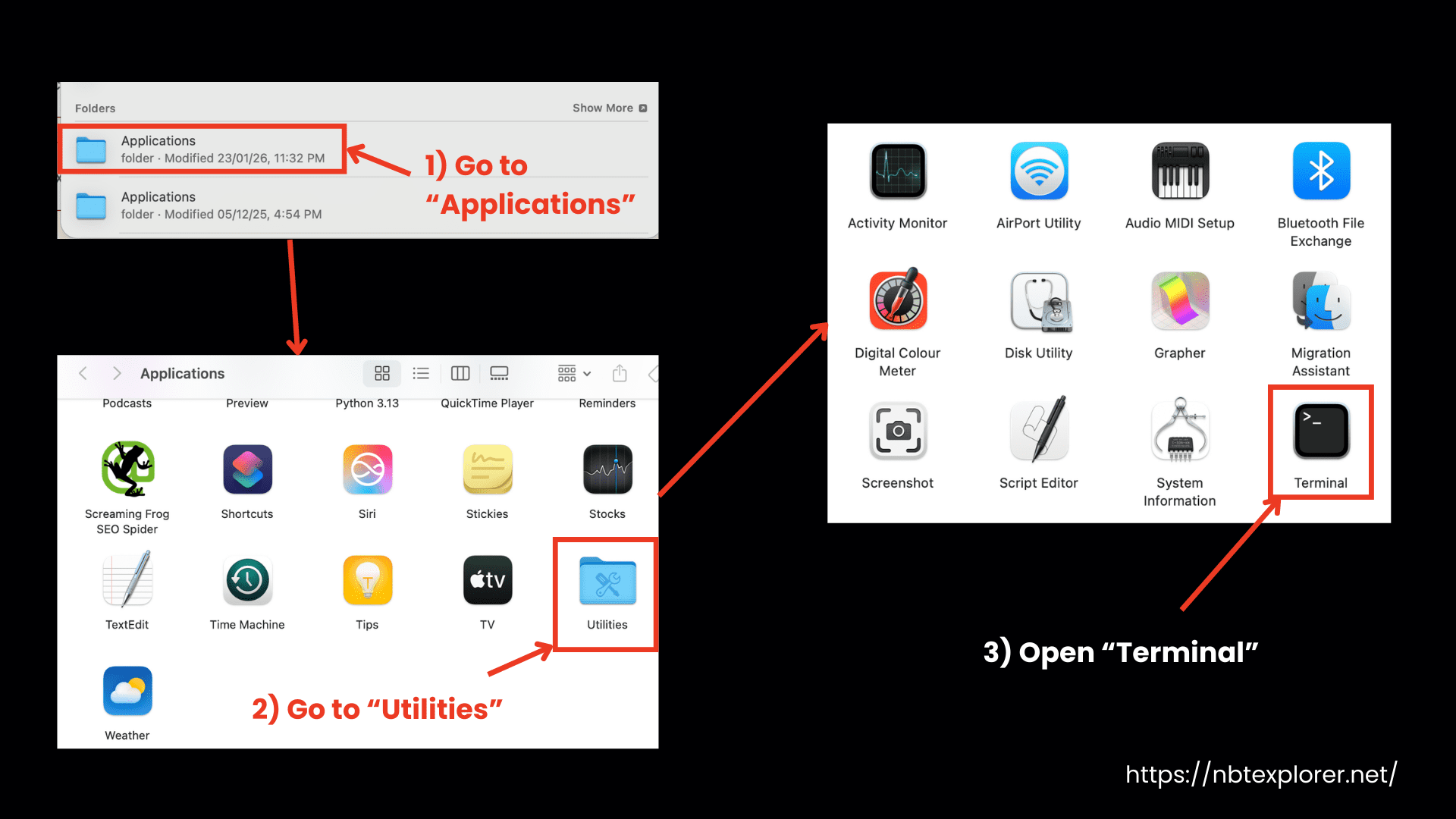
- Run the command: sudo spctl –master-disable
- Enter your admin password.

- Go to System Settings → Privacy & Security, and select “Anywhere” under “Allow apps downloaded from.”

- After opening NBTExplorer, re-enable Gatekeeper by running: sudo spctl –master-enable

Issue 2: Mac Version Not Compatible with OS X 10.6 or Older
If you have an older Mac version, such as OS X 10.6 or earlier, the latest version may not launch.
Reason: You need OS X 10.7 or higher, and the developer has confirmed that NBTExplorer does not work on OS X 10.6.x or older.
Solution 3: Disable Gatekeeper Temporarily (For Advanced Users)
- Go to the official website and download NBTExplorer.
- Install the Mono runtime for macOS
- Now, you need to extract NBTEXplorer files.
- Then, open Terminal.
- Go to the NBTExplorer folder
- Run mono NBTExplorer.exe
- If macOS blocks the file, remove the quarantine attribute: xattr -d com.apple.quarantine NBTExplorer.exe
Linux-Specific Issues
Let’s discuss a few of the most common issues causing NBTExplorer not to work on Linux:
Issue 1: Mono Runtime Errors
Your editor does not launch because mono-core and mono-winforms are not installed on the system.
Reason: You need the Mono runtime (at least version 2.6) and these specific Mono packages installed in your system to run NBTExplorer on Linux.
Solution: Install Required Mono Packages
- Ubuntu 20.04 and later: Connect your system to the official Mono repository and update your package list.
- Debian 10 and later: Add the Mono repository, update it. Sometimes, Debian 13 or later may show a minor key warning.
- Raspbian 10 and later: Add the Mono repository and update the system.
- After this, install Mono and the required packages.
Issue 2: XmlException on Closing (Linux Mono)
When you close the application, it crashes. This is an XmlException error.
Solution: Your user.config file has been corrupted. First, delete it and restart the NBTExplorer.
Issue 3: Application Not Responding / Unresponsive
Sometimes you may see that NBTExplorer does not respond after being launched or becomes non-interactive.
Reason: We know that it is an old application and it has not been updated recently. The last official release on GitHub is dated November 24, 2017, which may cause issues upon launch.
Solution:
- Wait for 30 to 60 seconds to see if it is really hung.
- If it still does not respond, use the kill command to stop the process. Run: pkill -9 NBTExplorer
General Issues and Solutions
Now we will discuss issues that are related to all types of operating systems, and their solutions are also not system-specific. Some of common issues people face are:
Issue 1: Changes Not Saving in Minecraft
Many people have shown their concerns on different community forums that when they make some changes in NBTExplorer and save them, the changes are not seen in the Minecraft world, even though the NBT editor shows the changes.
Reason: This is the most common mistake that people make as they edit the wrong file. Minecraft replaces the wrongly edited with the older ones.
You have to edit the player tag in level.dat, but you edit the player inventory in the playerdata.dat file in single-player worlds.
Solution:
For Single-Player Worlds
- Go to the NBTExplorer world folder.

- Open level.dat.
- Open Data → Player Data → Player.

- This is the place where you have to make changes (for single-player player data), not in the playerdata folder.
- Now save the changes.
- Close NBTExplorer.
- Launch Minecraft, and the edits should be applied.
For Multiplayer/Server Worlds
- For multiplayer, make sure that you completely stop the server first.

- Then edit the files in the playerdata folder and save your changes.

- Upload the edited files back to the server and restart the server.

Additional Reasons Changes Might Not Save
You may also make the following mistakes, and as a result, your changes will not be saved in the world. So always:
- Completely close Minecraft before doing any editing because some files get locked when it remains open.
- Save your changes.
- Enter valid NBT data, as Minecraft will reject non-existent values.
Issue 2: Cannot Access or Open Files
Sometimes you cannot open the NBTExplorer or cannot access its files. Or sometimes your operating system does not allow you to make changes to any file.
Solution: Check File Permissions
First, ensure that Minecraft is completely closed before you open any file for editing. If the problem still remains, check the file permissions or your account access.
First, close the game properly. Then
- Right-click NBTExplorer.exe
- Select “Run as administrator.”
- Try opening the file again
Issue 3: Save Button Remains Disabled After Edits
Sometimes it also happens that you make some changes, but the Save button does not become enabled, so your changes cannot be saved.
Reason: This may be a bug. Especially on Mac, it may happen that certain operations, for example deleting tags, are not saved properly, causing the file to open without the applied changes.
Solution:
- When you make any change, edit any simple integer value.
- Now change it to a different number.
- Then change it back to the original value.
- You will see that the Save button is enabled now.
- Now click Save.
FAQs
There can be multiple reasons, including a missing .NET requirement, file permission problems, or a corrupted file. You may need to bypass SmartScreen, update .NET, or run the program as an administrator, as discussed above.
Mac may block NBTExplorer because it detects it as being from an “unidentified developer.” You need to do the following: System Settings → Privacy & Security → Open Anyway. For advanced users, we have also discussed a solution to temporarily turn off Gatekeeper using Terminal.
If you edit the wrong file or do not completely shut down Minecraft before editing the files, the system may not save the changes to the Minecraft world.
Final Words
NBTExplorer is a useful tool for editing NBT data including Minecraft worlds and player data. However, sometimes problems may arise during these changes. In most cases, these issues are easy to fix, such as updating .NET, bypassing security warnings, or removing corrupted files. You can enjoy smooth gameplay and make changes to your Minecraft world easily and safely.
